
pAIring live chat workflow

Stats → Visual chat workflow is a diagram of every step a message goes through. With the Matricxon engine it is also live: while replies run, the steps they are in light up, arrows carry moving streams, and slow steps are flagged. It answers the question every slow reply raises: where is the time going?
With another engine (llama.cpp or a cloud connector) the diagram stays a static map, and the status box says the live view needs Matricxon.
What you see
Section titled “What you see”The diagram has two parts: pAIring’s own steps (building the prompt, searching the knowledge base, calling tools), and the engine’s steps that produce the reply. Most of the time goes to the engine, so the view starts with only the engine showing. pAIring’s steps are collapsed into a single dashed box at the top, called App steps.
To see pAIring’s steps in full, click the App steps box or the Show app steps button above the diagram. Hide app steps collapses them again.
While collapsed, the box still shows what is happening inside it. It lights up when any of pAIring’s steps is running, and names the slowest one with its time, for example inference_client.rerank() 3.65s.
The status box
Section titled “The status box”The box in the top-left corner lists the replies running now, then the ones that just finished (dimmed), up to four, with +N more running below when there are more. Each row shows:
| Field | Meaning |
|---|---|
| Colour dot | The reply’s colour; its dots on the diagram use the same colour |
| Step | What the reply is doing: a pAIring step, or Loading the model, Waiting for a free model slot, Reading the prompt, Writing the reply |
| Model | The chat model. untracked marks a Matricxon reply no chat on this pAIring instance started, such as a smart title or another instance’s chat |
| Elapsed | Time since the message was sent |
| 1st token | Time from starting to read the prompt until the first word of the reply |
| Tok/s | Writing speed, in tokens per second |
| Tokens | Tokens written so far |
| Layer | The model layer being computed, for example 14/36 |
Click a row to scroll to the step that reply is in. Hide collapses the box.
- Glow: the step is running now.
- Time pill on the box’s corner: how long the step took, or has taken so far. A step with two or more replies in it shows
×2 · …and the slowest reply’s figures. - Amber or red ring with “1.8× usual”: the step is slower than usual. Amber means at least 1.5 times its usual time, red at least 2.5 times. Usual is the slowest tenth of that step’s last 50 runs, so it is only known after about five runs.
- Dimmed values: the result of the last reply, kept for a while after it finished.
Inside the engine
Section titled “Inside the engine”| Node | Live information |
|---|---|
| ML engine | Glows while a reply is in the engine; waiting for a slot when replies queue for the model |
| Model get_or_load | The load time when the model had to be loaded |
| Prompt cache | How much of the prompt was reused, for example 540/1180 reused |
| Repeat for all N layers | While reading the prompt: prefill 256/801 · layer 22/35. While writing: layer 14/36 · tok 57 |
| Decode loop | Tokens per second, with a ring when it is well below this model’s usual speed |
| Attention, Feed-forward, norms, LM head, Sampler, Embedding lookup | Their share of the engine’s computing time for the reply, as a percentage and a bar |
| Weight matmul kernels | How much of that time was the weight matrix multiplication, for reading the prompt and writing the reply separately, for example read 86% · write 54%. It runs inside the others, so it overlaps them. Reading normally shows 80 to 90% and writing 50 to 60%: writing works one token at a time, so the other steps take a bigger share |
The prompt counter moves once per 256-token piece, which can take a minute on a slow CPU. The layer number keeps moving in between, so a counter at 0/801 with a changing layer is working, not stuck.
The percentages are measured only while someone has the live view open, and only on CPU: on a GPU the work runs in the background and wall-clock times would mislead.
Arrows
Section titled “Arrows”- Moving dotted stream: data is flowing between two steps for the same reply. Steps that are busy for different replies never get a stream between them.
- Thicker line with ×N: N replies use that arrow at once.
- Speed: writing-the-reply arrows move faster with the replies’ combined tokens per second.
- Dots: each time a reply finishes a step, or writes a token, a dot in its colour travels the arrow. Follow one colour to follow one reply.
Debugging with the live view
Section titled “Debugging with the live view”| What you notice | Where to look | Likely cause and fix |
|---|---|---|
| A long wait before anything happens | The App steps box ring and its slowest step | Usually the knowledge base: embedding, or the reranker reading many passages. Lower Passages to rerank or turn the reranker off. See Knowledge base (RAG). |
| Loading the model on many messages | Model get_or_load | The model is unloaded between messages: raise Max loaded models or Keep model loaded. |
| Waiting for a free model slot | ML engine | More replies than Concurrent replies per model allow. Raise it, add a node, or spread users over models. |
| The whole chat is read again on every message | Prompt cache shows little reuse | The chat’s saved state was lost: the model was unloaded, or the chat changed model. Raise Max loaded models. |
| Reading the prompt takes minutes | Repeat for all N layers (prefill) and 1st token |
Before replying, the model reads the whole prompt: the chat so far plus any passages found in the knowledge base. A long chat, or many passages, makes this slow on a CPU. Lower Document search results in the chat’s settings, start a new chat for a new topic, or run the engine on GPUs. |
| Writing is slow | Decode loop ring and Tok/s in red | Compare with the usual speed. A hot, throttled CPU and other programs on the same computer are common causes. |
| One stage takes far more of the time than usual | The percentages | Normal is Feed-forward and Attention taking most of it. A large Sampler or LM head share points at a setting or model issue worth reporting. |
The live view itself is light: pAIring asks Matricxon for progress only while the view is open and its tab is visible.
Workflow analysis
Section titled “Workflow analysis”Stats → Workflow analysis is the easy way to find problems. You don’t need to open each server’s logs and piece them together: the page sums up the last 5 minutes of every running Matricxon server, plus pAIring’s own steps, and lists what needs attention, most serious first. Each finding names the node, model or step, and says what to change.
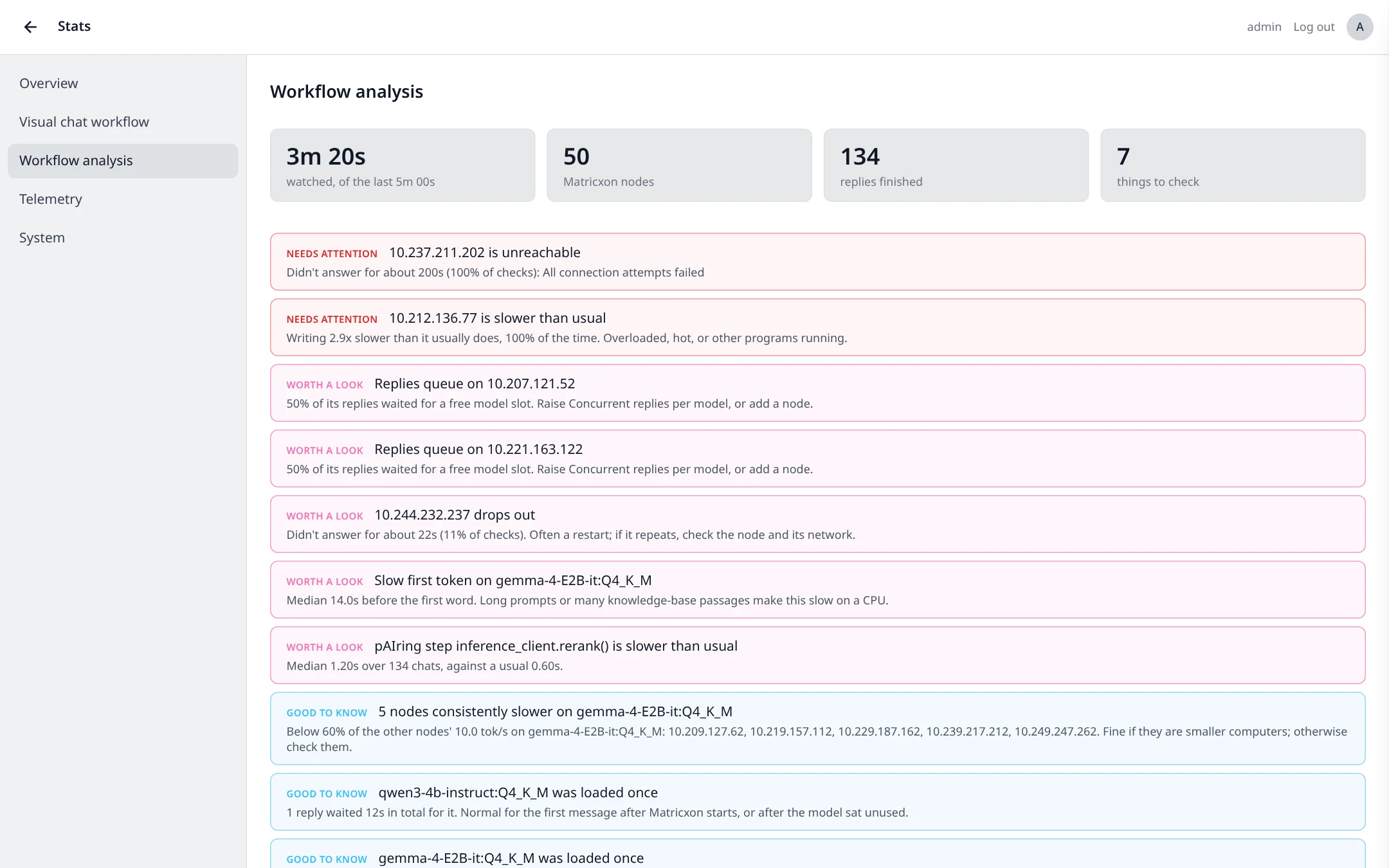
The findings come in three levels:
- Needs attention: a node that could not be read; an overloaded node, where replies waited a minute or more for their first word or wrote below 1 token per second (judged on these absolute signs, so it works even right after a restart, before any usual speed is known); a node writing far slower than it usually does; or a long chat read from the start that held up the node’s other replies for half a minute or more. That last one names the cause, not its symptoms: the queue and the slow replies it caused are not listed separately.
- Worth a look: replies waiting for a free model slot, a node that drops out now and then, models loaded while replies waited, a slow first token, or a pAIring step slower than usual.
- Good to know: nodes that are always slower than the others on the same model (fine if they are smaller computers), and little prompt-cache reuse.
Below the list, three tables show the details: Nodes (the ones worth a look first), Models (replies, first token, speed, loads, cache reuse) and pAIring steps.
Every node is compared with itself and with the other nodes running the same model. A smaller computer is therefore reported once, as “consistently slower”, not as slow all the time; and “slower than usual” really means something changed on that node.
Using it to find a problem
- Open the page while users chat, or leave it open for a few minutes: it fills as it watches.
- Start at the top. Needs attention items usually explain the complaints: a node that can’t be reached, or one writing far slower than it usually does (check its temperature and what else runs on it).
- Worth a look items point at settings: raise Concurrent replies per model or add a node when replies queue; raise Max loaded models or Keep model loaded when models load while users wait; lower Passages to rerank when a knowledge-base step is slow.
- Use the Nodes table to compare a suspect node with the others, then open the Live chat workflow to watch it in real time.
The information is collected only while the live view or this page is open, so the summary covers that time, at most the last 5 minutes. The first tile shows how much of the window was watched. pAIring keeps it in memory and saves it to disk every few seconds, so a restart keeps the last minutes.
Large installs and clusters
Section titled “Large installs and clusters”The live view reads GET /api/live from every Matricxon node in the cluster, about twice a second, and merges them into one picture. That makes it a quick health check for a busy installation:
- Hot spots: thick ×N arrows and ×N steps show where most replies are right now.
- Capacity: many rows Waiting for a free model slot, or a glowing ML engine with a queue, mean the nodes are full. Add nodes or raise Concurrent replies per model where memory allows.
- Which node runs what: with more than one node, the status box header shows how many nodes are polled (
Matricxon engine · 3 nodes), and each row names its reply’s node in blue before the model, for examplenode-2 · qwen3-4b…. The ML engine step names the node its running replies are on, or how many:×3 · 2 nodes. - Slow nodes and contention: a red Tok/s on one node’s replies but not others’ usually means that node is overloaded right now. A node that is simply weaker does not turn red: usual speeds are kept per node (see below).
- Node problems: a node that cannot be reached, or runs a Matricxon version without the live view, is named under the status box (has no live view yet: update Matricxon). The other nodes keep showing.
- Other traffic: replies started by another pAIring instance, or another program using the same nodes, show as untracked rows, so you can see load you did not cause.
Things to know on a large install:
- App steps are per pAIring instance. The pAIring steps (prompt building, knowledge base, tools) come from the instance serving your Stats page. Engine steps come from all nodes, whichever instance started the chat.
- Node names are the node addresses from the cluster settings, without
http://and without Matricxon’s default port 8420. To see one node alone, call its live endpoint:curl http://node-2:8420/api/live. It lists that node’s replies with phase, tokens, speed and stage times, and keeps its stage timing on for 15 seconds. - Usual speeds are per node and model. A slow ring means “slower than this node usually runs this model”, so a weaker node is not flagged all the time. A model new to a node gets its usual speed after about three replies there.
- After a failover, a reply retried on another node is shown on the new node. The failed attempt is hidden while the retry runs.
- Very large clusters are summarised. With more than 24 chats at once, the status box shows this instance’s chats first, then the slowest replies, so the rows you see are the ones worth a look. The other chats are still counted in every ×N figure and arrow, but not shown one by one. On clusters of more than 200 nodes, pAIring also reads the nodes less often, up to every 2 seconds at 1,000 nodes, and leaves an unreachable node alone for 10 seconds before trying it again.
- Replies on the same model are computed together in one batch. Their stage percentages stay meaningful; the seconds behind them are shared.